GB WhatsApp Update Stuck? Here’s How to Fix It
Keeping GB WhatsApp updated is the best way to enjoy the latest features, improved security, and bug fixes. However, many users run into the same frustrating problem—the update gets stuck, refuses to install, or fails halfway through the process.
The good news is that this issue is usually easy to solve. In most cases, it isn’t caused by your phone but by installation settings, storage problems, or using an outdated APK file.
If your GB WhatsApp update won’t complete, don’t panic. This guide walks you through the most effective solutions so you can update the app without losing your chats or media.
Quick Summary
If your GB WhatsApp update is stuck, try these solutions first:
- Download the latest version from a trusted source.
- Check that your Android version is supported.
- Free up storage space.
- Enable installation from unknown sources.
- Restart your device.
- Clear the Package Installer cache.
- Backup your chats before reinstalling.
Let’s go through each solution in detail.
Why Is GB WhatsApp Update Stuck?
There are several reasons why GB WhatsApp may stop updating.
The most common causes include:
- Downloading an outdated APK
- Corrupted installation files
- Not enough storage space
- Android security settings blocking installation
- Conflicts with an older GB WhatsApp version
- Interrupted downloads
- Incompatible Android versions
Fortunately, most of these problems can be fixed in just a few minutes.
1. Download the Latest GB WhatsApp APK
One of the biggest mistakes users make is trying to install an older APK over a newer version.
Always make sure you’re using the latest available release.
If you’ve downloaded the APK several weeks or months ago, it may no longer work correctly with your device.
Before installing:
- Delete the old APK file.
- Download a fresh copy.
- Verify that the download completed successfully.
- Avoid modified or suspicious APK files.
A damaged installation package can easily cause the update to freeze.
2. Check Your Available Storage
GB WhatsApp requires enough free space to unpack and install the new version.
If your phone storage is almost full, Android may stop the installation without giving a clear error message.
To check storage:
- Open Settings.
- Go to Storage.
- Make sure you have at least 1–2 GB of free space.
If storage is low:
- Delete unused apps.
- Remove duplicate photos.
- Clear downloaded files.
- Empty your recycle bin.
- Move large videos to cloud storage.
Once you’ve freed up enough space, try updating again.
3. Enable Installation from Unknown Sources
Since GB WhatsApp isn’t available on Google Play, Android treats it as an app from an unknown source.
If this permission is disabled, installation may stop immediately.
To enable it:
- Open Settings.
- Go to Security or Privacy.
- Select Install Unknown Apps.
- Choose your browser or file manager.
- Turn on Allow from this source.
After enabling the permission, reopen the APK and try installing it again.
4. Restart Your Phone
It may sound simple, but restarting your device solves many temporary software issues.
A restart clears temporary memory, stops background processes, and refreshes Android services.
After restarting:
- Don’t open unnecessary apps.
- Install GB WhatsApp immediately.
- Keep your phone connected to Wi-Fi during the process.
Many users find that a simple reboot fixes update problems.
5. Clear the Package Installer Cache
Android uses the Package Installer to install APK files.
If its cache becomes corrupted, installations may freeze or fail.
To clear it:
- Open Settings.
- Tap Apps.
- Select Package Installer.
- Tap Storage.
- Choose Clear Cache.
You can also clear cache for:
- Files
- Download Manager
- Chrome (if you downloaded through Chrome)
This often resolves installation errors.
6. Check Android Compatibility
Older versions of Android may not support the newest GB WhatsApp release.
Likewise, beta versions of Android sometimes cause compatibility issues.
Before updating:
- Check your Android version.
- Compare it with the minimum requirement for the APK.
- Update your operating system if available.
Using an unsupported Android version can prevent successful installation.
7. Backup Your Chats Before Reinstalling
If nothing else works, reinstalling GB WhatsApp is often the quickest solution.
However, don’t uninstall the app before creating a backup.
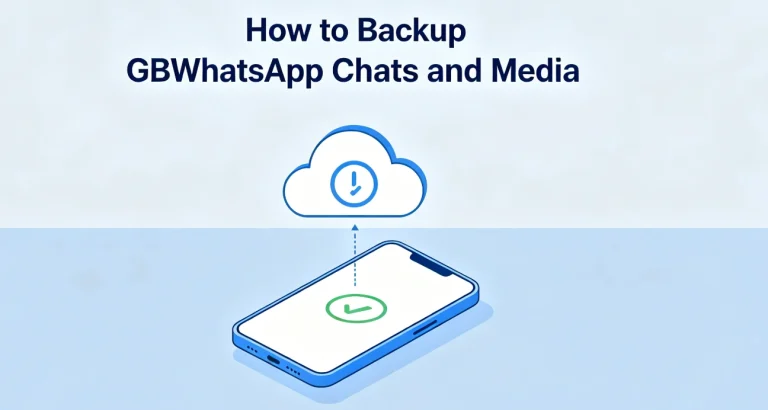
To back up your chats:
- Open GB WhatsApp.
- Go to Settings > Chats > Chat Backup.
- Create a local backup.
- Copy the GB WhatsApp folder to another location for extra safety.
Once your backup is secure:
- Remove the old version.
- Install the latest APK.
- Restore your chats during setup.
This helps prevent losing important conversations and media files.
8. Download GB WhatsApp Only from Trusted Sources
Many update problems happen because users download modified or incomplete APK files.
A reliable source should provide:
- The latest version
- Complete APK files
- Updated release information
- Virus-free downloads
Avoid downloading from unknown websites that bundle extra software or display excessive pop-up ads.
Using a clean installation package significantly reduces update issues.
Extra Tips for a Smooth Update
Here are a few additional tips to make future updates easier:
- Keep at least 2 GB of free storage.
- Update regularly instead of skipping multiple versions.
- Back up chats every week.
- Use a stable Wi-Fi connection.
- Avoid interrupting the installation process.
- Restart your phone before major updates.
- Keep your Android system updated whenever possible.
Following these habits can help prevent update problems in the future.
Frequently Asked Questions
Why is my GB WhatsApp update stuck?
The most common reasons include insufficient storage, outdated APK files, installation permissions, or corrupted downloads.
Can I update GB WhatsApp without losing chats?
Yes. Create a local backup before updating, and your chats can usually be restored after installation.
Why won’t my APK install?
Check that you’ve enabled installation from unknown sources, downloaded the latest APK, and have enough storage space.
Should I uninstall GB WhatsApp before updating?
Not usually. Try updating over your existing version first. Only reinstall if the update repeatedly fails after trying the troubleshooting steps.
Is it safe to update GB WhatsApp?
As long as you download the APK from a reputable source and back up your chats beforehand, updating is generally straightforward.